Managing Your Profile and Password
You can manage your profile, including your name, username, email address, and password, from the Arvee profile page. To access this page, click your email address in the upper-right corner of the application and select “Your Profile”:
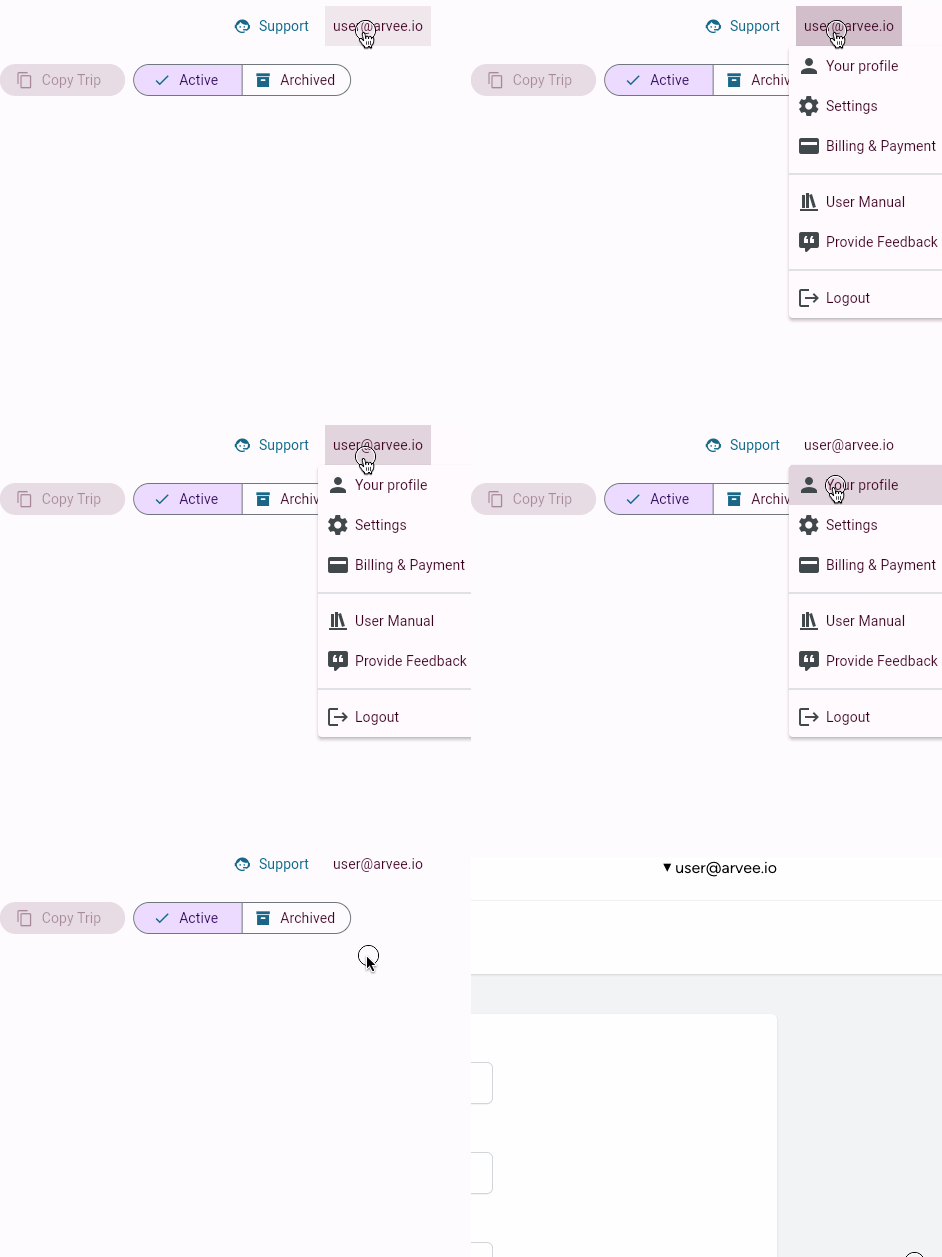
This will bring you to your profile management screen.
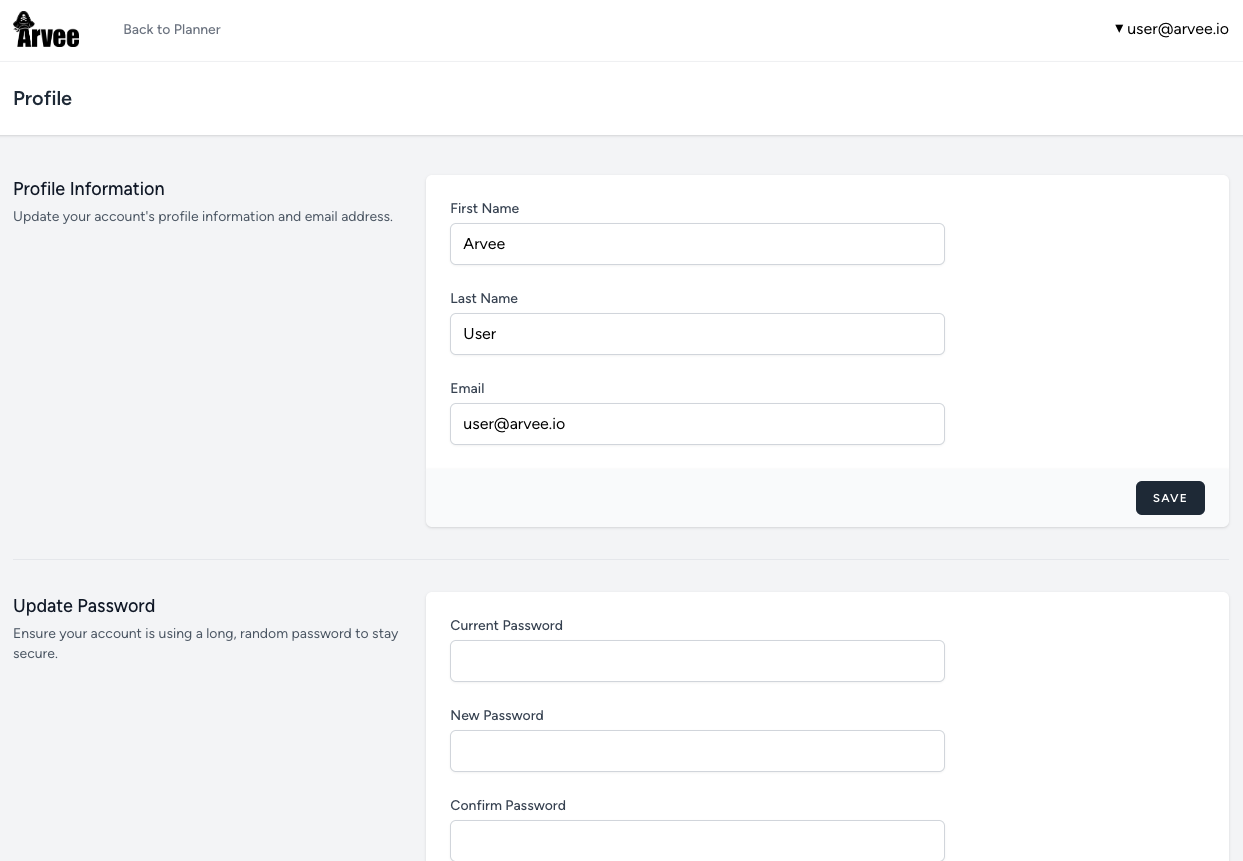
To return to trip planning, click Back to Planner next to the Arvee logo in the upper corner.
Your Name
Your first and last name are optional during signup, so your profile may not have a name yet. You can add or update your name at any time from the profile page.
Your name is how other Arvee users see you — in friend lists, shared trips, and social features. If you haven’t set a name, your username is displayed instead.
Your Username
Every Arvee account has a username, assigned automatically when you create your account:
- If you signed up with your name (or a social provider shared it), your username is based on your name — for example, johndoe.
- If no name was available at signup, you received a themed username like WanderingPines4821.
You can change your username from the profile page. Usernames must be unique across Arvee.
Changing Your Email Address
You can update your email address from the profile page.
If you change your email address you will need to re-verify your email address by opening the email sent to the new address in order to continue using your account!
See Verifying Your Email for more about what happens when your verification status resets.
Changing Your Password
In order to change your password you will need to enter in the current password, followed by a new confirmed password on the profile screen.
If you’ve forgotten your current password, see Resetting Your Password for how to reset it.